Audio Strap Setup Guide
Set up and fine-tune the Bigscreen Beyond Audio Strap: route the cable, attach the strap, dial in the speaker arms, and keep it maintained.
Connecting the Audio Strap to the Headset
Cable Routing
Routing the Beyond Cable Through the Cable Holder
The cable holder prevents tangling and damage, ensuring smooth movement. The rubber protects against bending, extending the cable's life.
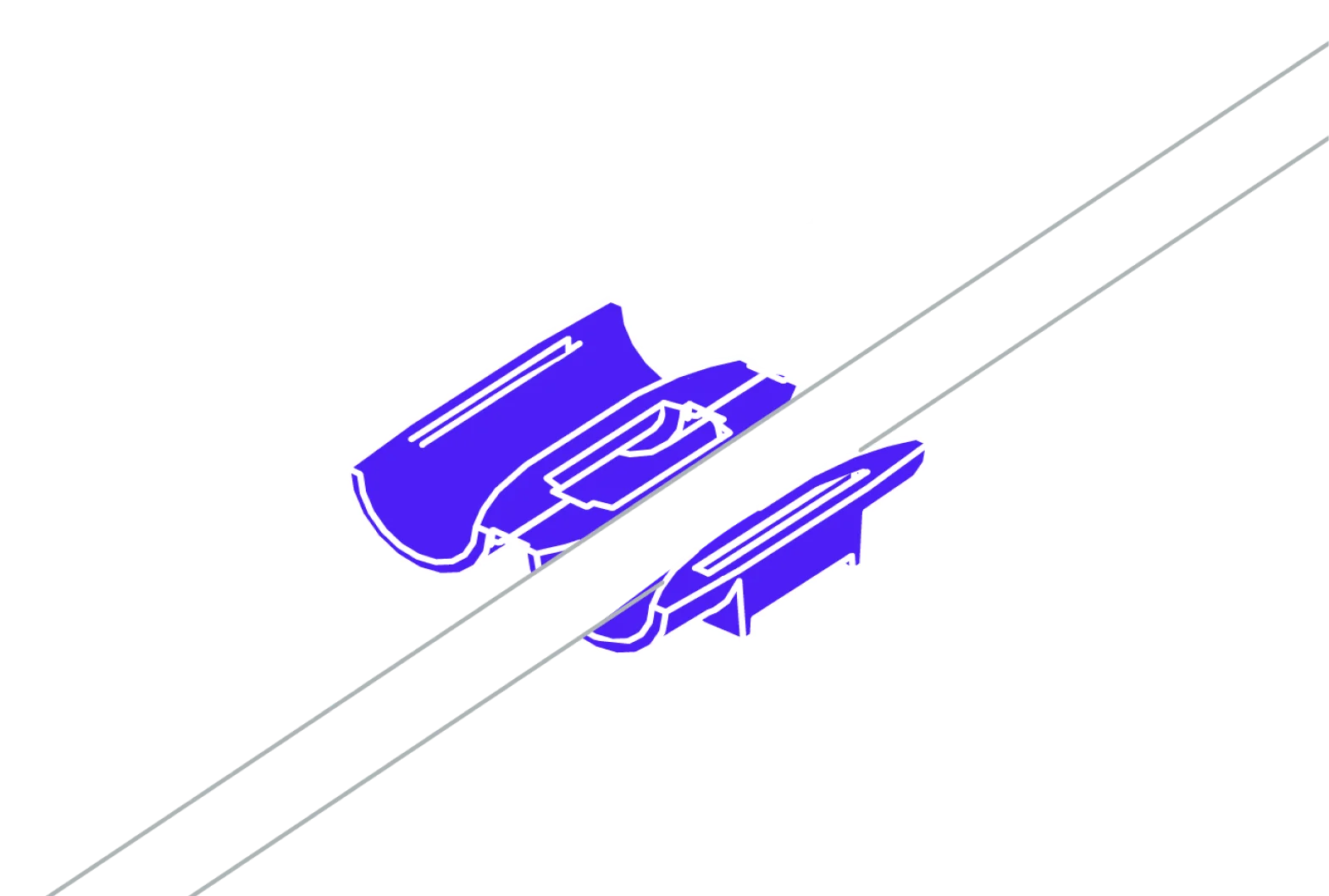
Prepare the Cable Holder
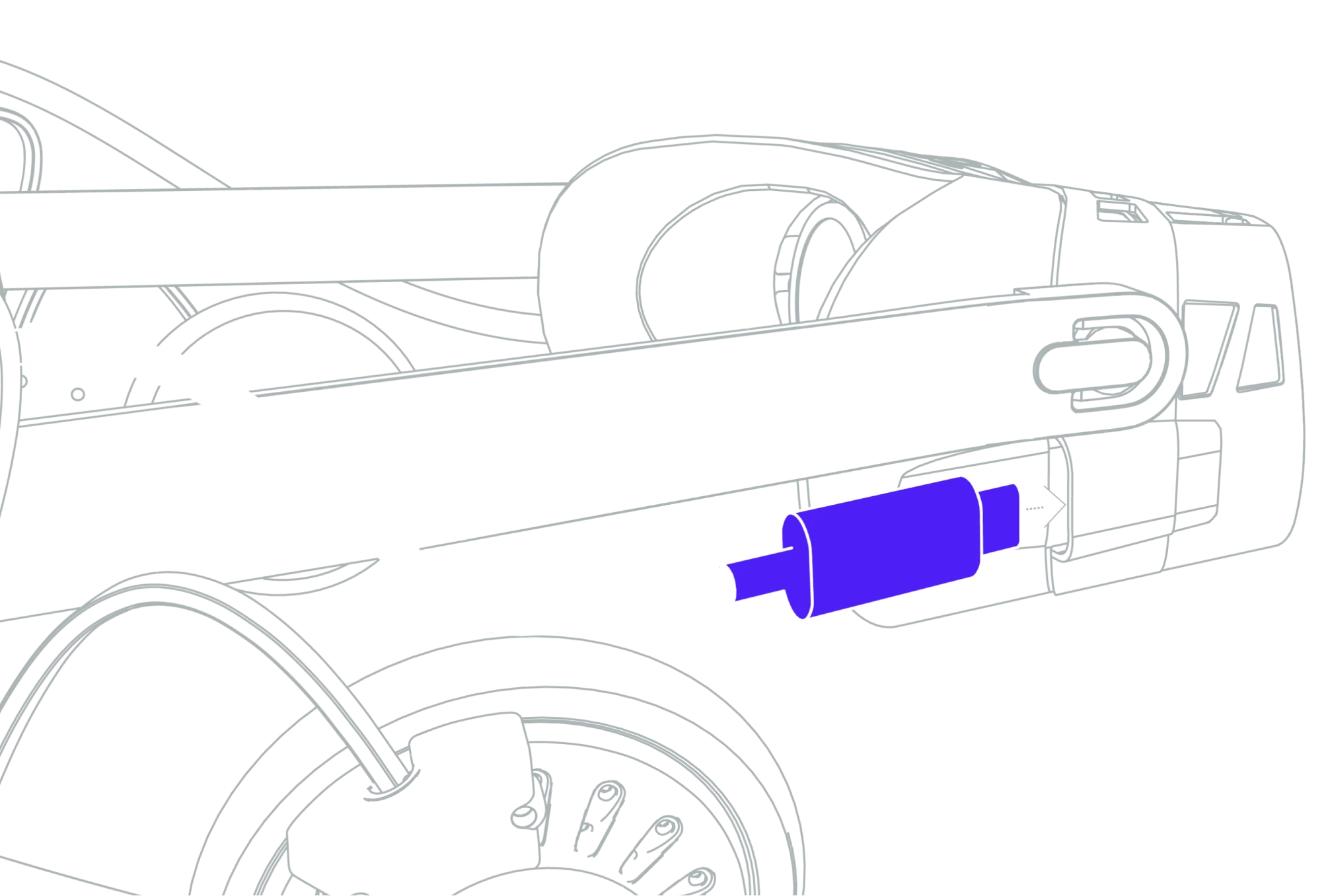
Take the cable holder rubber and wrap it around the Beyond cable as shown. Leave sufficient cable length to move your head comfortably without restriction.
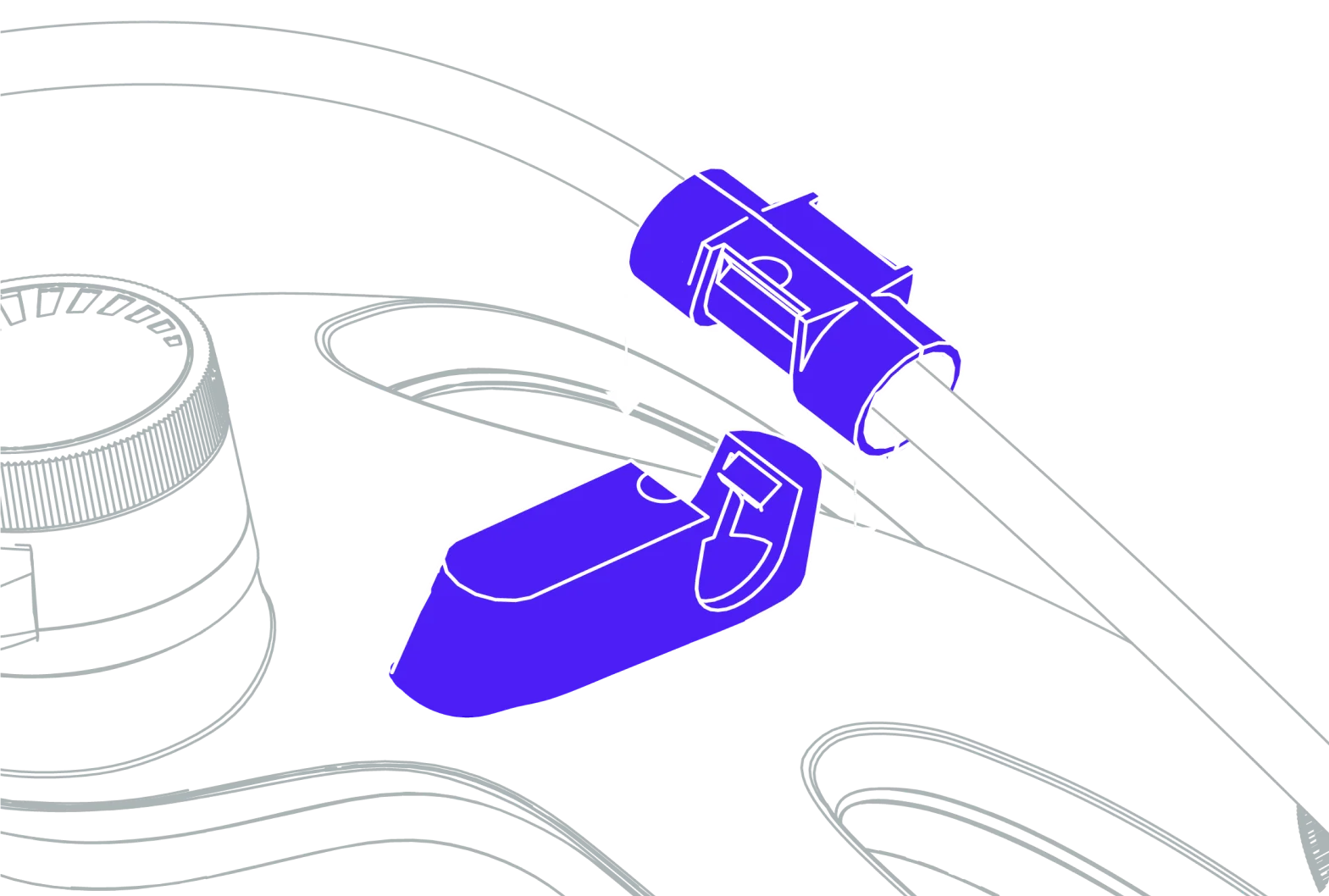
Attach to the Audio Strap
Position the cable holder rubber into the cable holder clip on the left back side of your Audio Strap. Ensure it fits securely and snugly.
Attach
Attaching the Audio Strap to the Headset
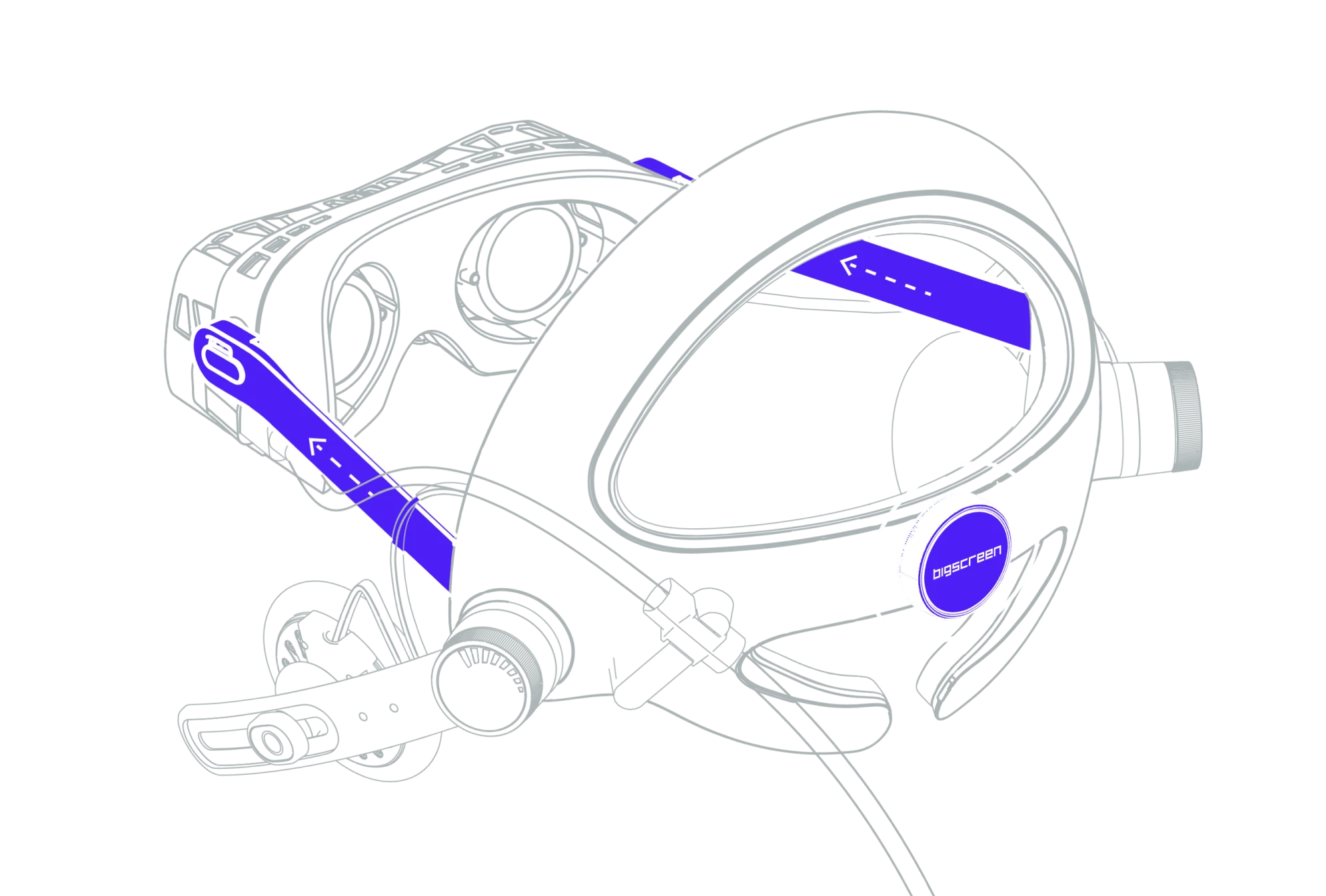
Carefully align and press each audio strap arm into the specified hinges on the headset, ensuring they slot into place with a gentle but firm click. To verify a secure connection, give the arms a soft tug.
Next, insert the USB-C headset cable, which you previously routed through the cable holder, into the headset's port. Should you require additional cable length for comfortable use, lightly pull the cable through the cable holder to adjust. Confirm that you have enough cable slack for unrestricted head movement.
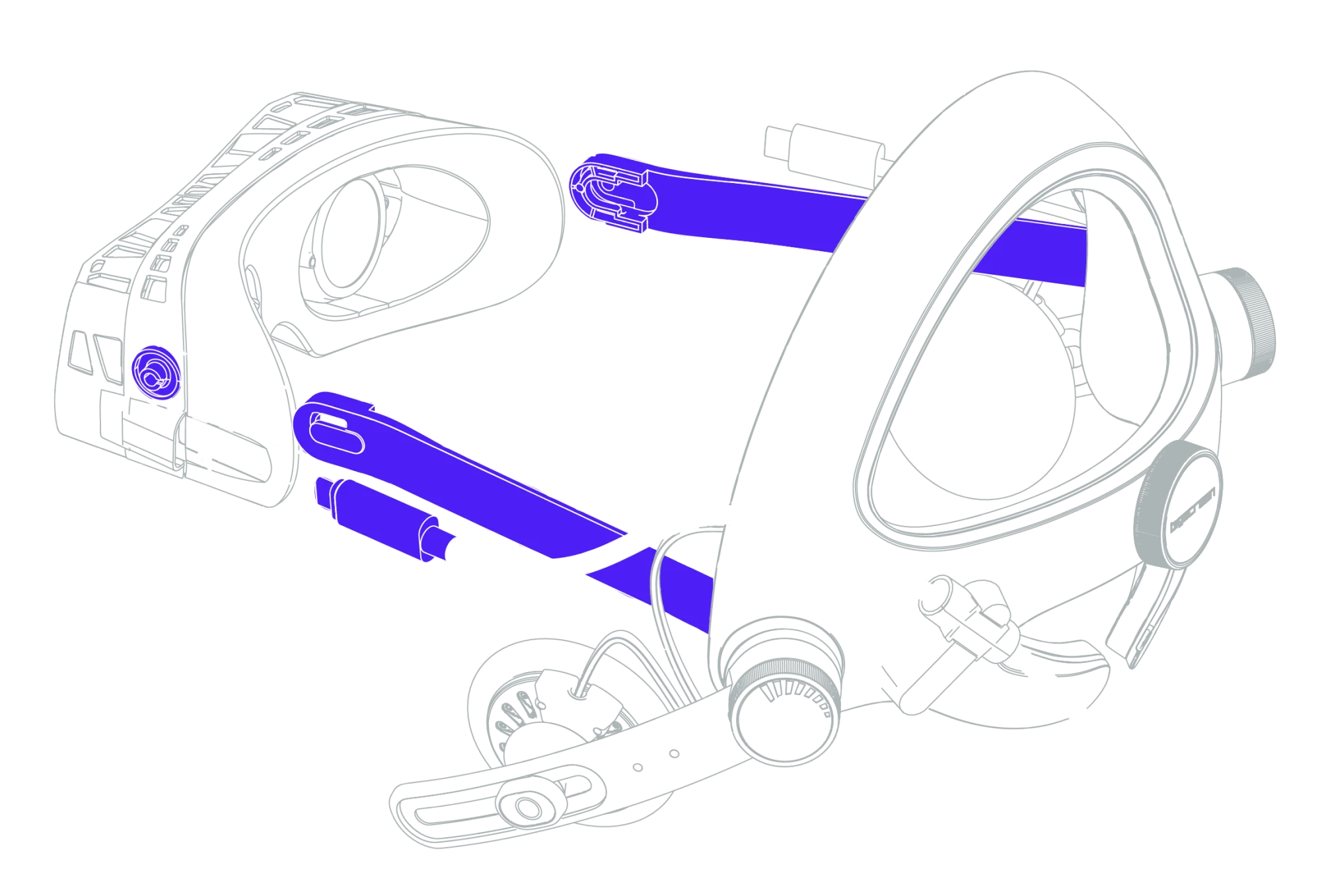
Utilizing Audio Strap Arm Extensions
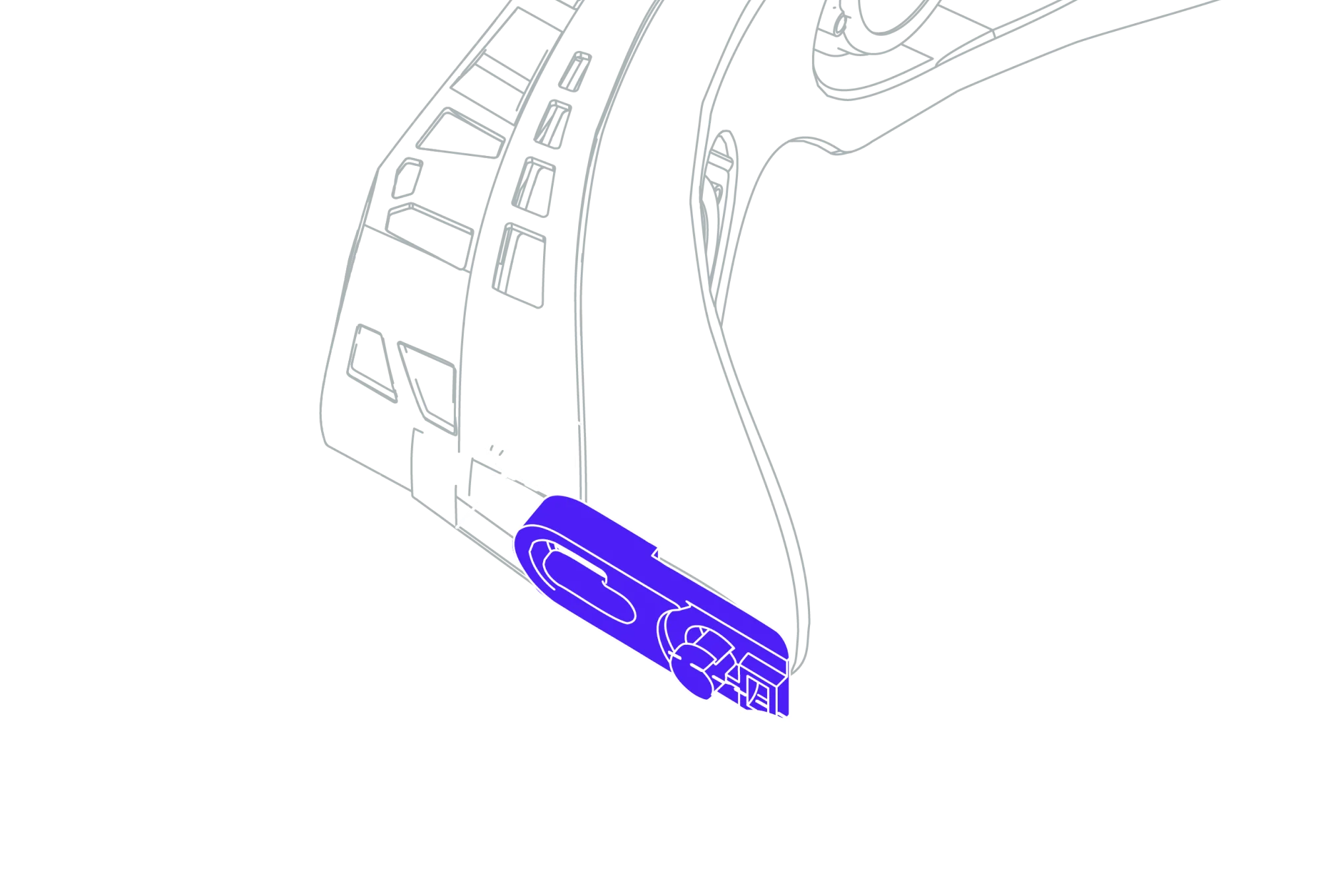
Some customers with larger or wider head shapes may get a more comfortable experience by using the Arm Extensions.
To install, first attach the extension onto the headset's hinge. Then connect the audio strap arm to the extension. After assembly, perform a gentle pull test on the extended arm to ensure it's securely fastened and properly aligned.
Connect
Connecting the USB-C Audio Strap Cable
Locate the USB-C port on the right side of your Bigscreen Beyond. This is where you'll connect the Audio Strap. The USB-C audio strap cable is designed to extend and retract; when first unboxed it sits retracted in the housing by default. To extend it, pull gently and firmly.
Do not connect the Audio Strap to the left port. The left port is reserved for the headset's USB-C connector, which links your Link Box to your Beyond headset.
Audio Strap Adjustments
Adjusting your Audio Strap is key to achieving the perfect fit for your Bigscreen Beyond. In the steps below, we'll guide you through customizing the fit for optimal comfort and sound quality.
Fit
Adjusting the Headset Arms
Adjust the pressure of your Beyond by twisting the knob on the back of the Audio Strap. This extends or retracts the headset arms, allowing for a tighter or looser fit. Aim for a secure yet comfortable fit, and avoid overtightening to prevent damage to the strap and discomfort during use.
Fine-Tuning
Adjusting the Speaker Arms
Achieving the perfect audio experience involves fine-tuning the speaker arms for optimal placement. There are three key adjustments you can make to ensure the speakers sit snugly over your ears, delivering the best possible sound.
Lowering or Raising the Speaker Arm
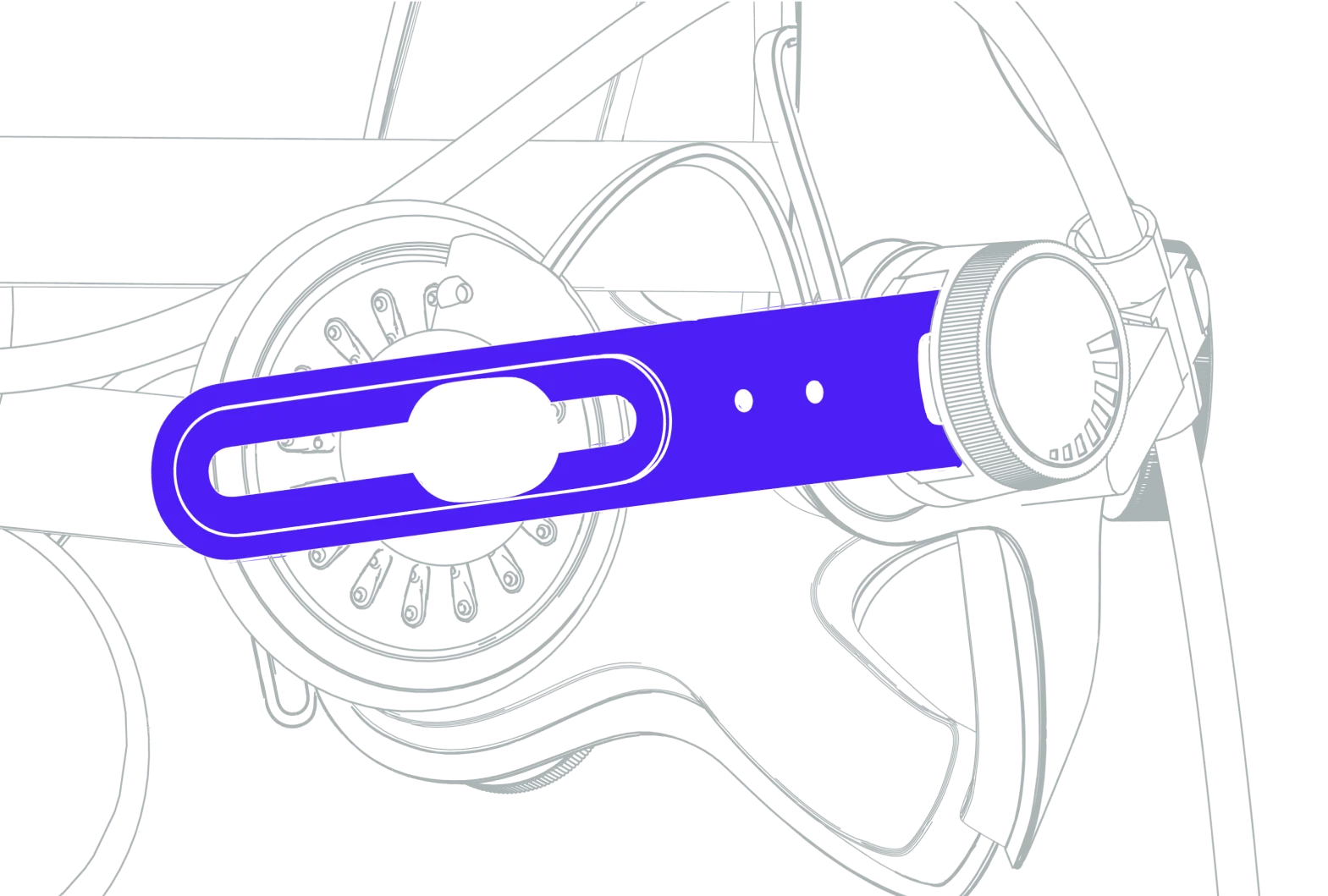
To adjust the height of the speaker arm, gently hold it with your fingers and move it downwards to lower or upwards to raise.
Moving the Speakers Closer or Further
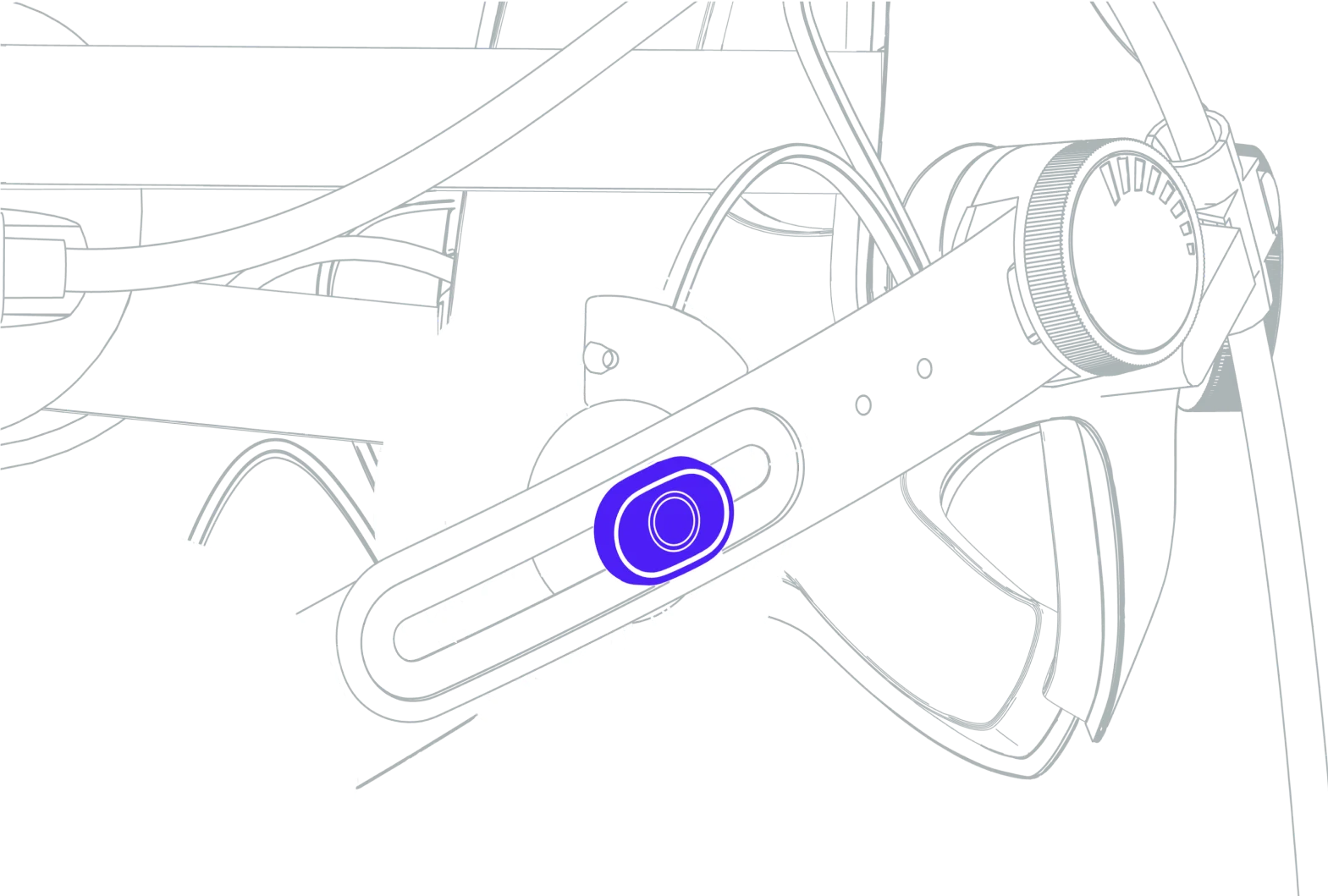
To adjust the distance of the speakers from your ears, locate the knob on the speaker arm. With a gentle grip, push or pull the speakers forwards or backwards.
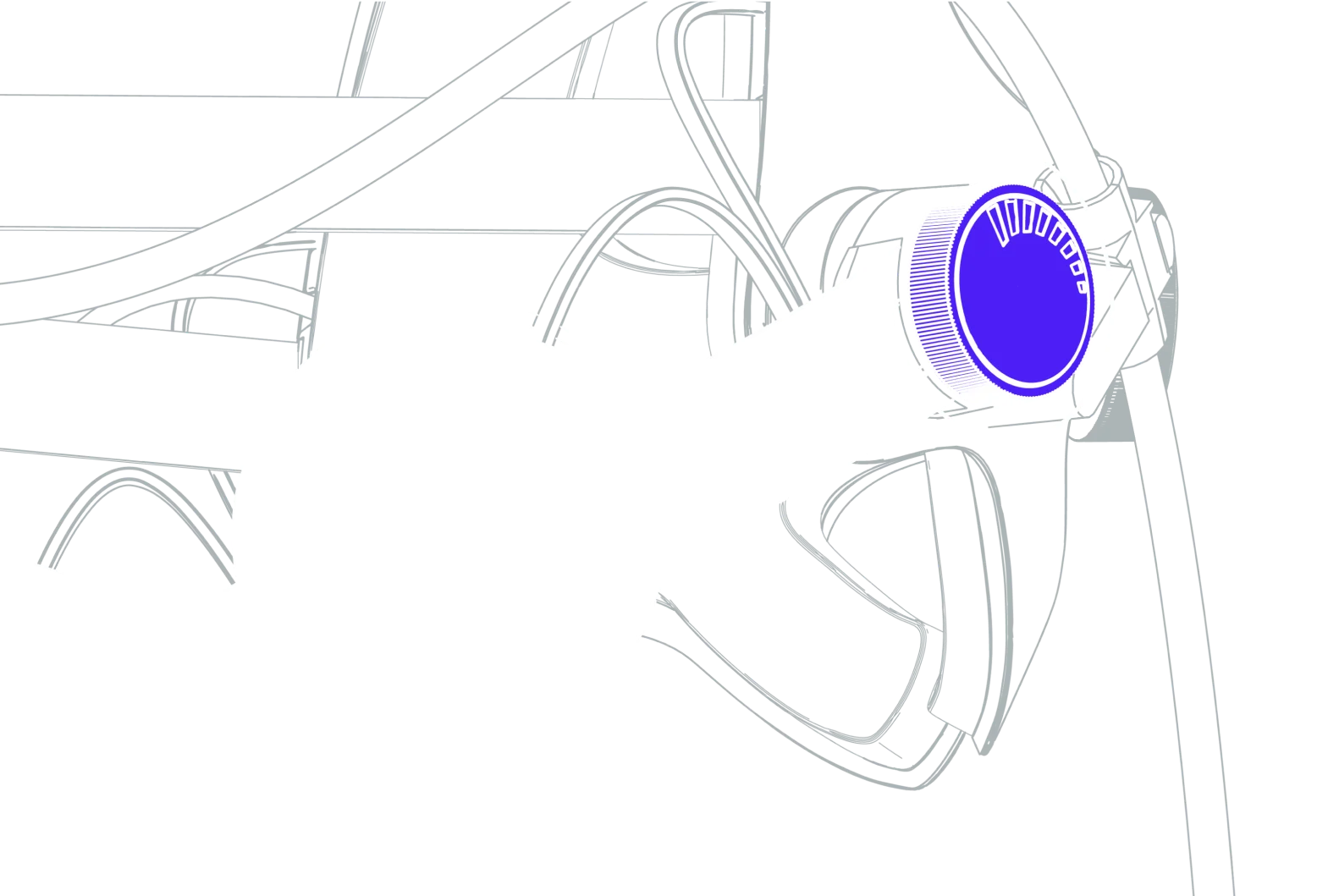
Adjusting the Speaker Distance
Look for the side knobs on the speaker arms and gently rotate them to move the speakers closer to or further from your ears. This fine adjustment balances comfort against audio quality.
Cleaning & Maintenance
Essential Maintenance for Your Audio Strap
Maintaining your Bigscreen Beyond Audio Strap is essential for its durability and the best audio experience. Proper care protects its delicate parts and preserves your sound quality.
General Precautions
Never use Alcohol or Liquids
Avoid cleaning the Audio Strap with alcohol (IPA) or any other liquids. These can damage the electronics and degrade the strap's material, affecting quality and comfort.
Keep Out of Direct Sunlight
Direct sunlight can warp or degrade the strap's materials, affecting fit and comfort. Store your Audio Strap in a shaded, cool place to prevent damage.
Avoid Extreme Temperatures
Extreme heat or cold can affect the flexibility of the materials and the performance of the electronics. Store it in a moderate-temperature environment to maintain its integrity over time.
Support
Troubleshooting
Find answers to common questions for your Audio Strap. If you still need help, contact Bigscreen Support.
I don't hear audio from the Audio Strap.
Confirm that the Audio Strap cable is fully connected to the accessory USB-C port on the right side of the headset. Then select the Beyond audio device in Windows and SteamVR.
One speaker is quieter than the other.
Check that both speaker arms are positioned the same distance from your ears. Reseat the Audio Strap connection and verify that the left and right balance is centered in Windows audio settings.
The speakers press against my ears or sound too quiet.
Use the side knobs to adjust speaker distance. Move the speakers slightly away for comfort or closer for stronger volume and bass, keeping both sides evenly positioned.